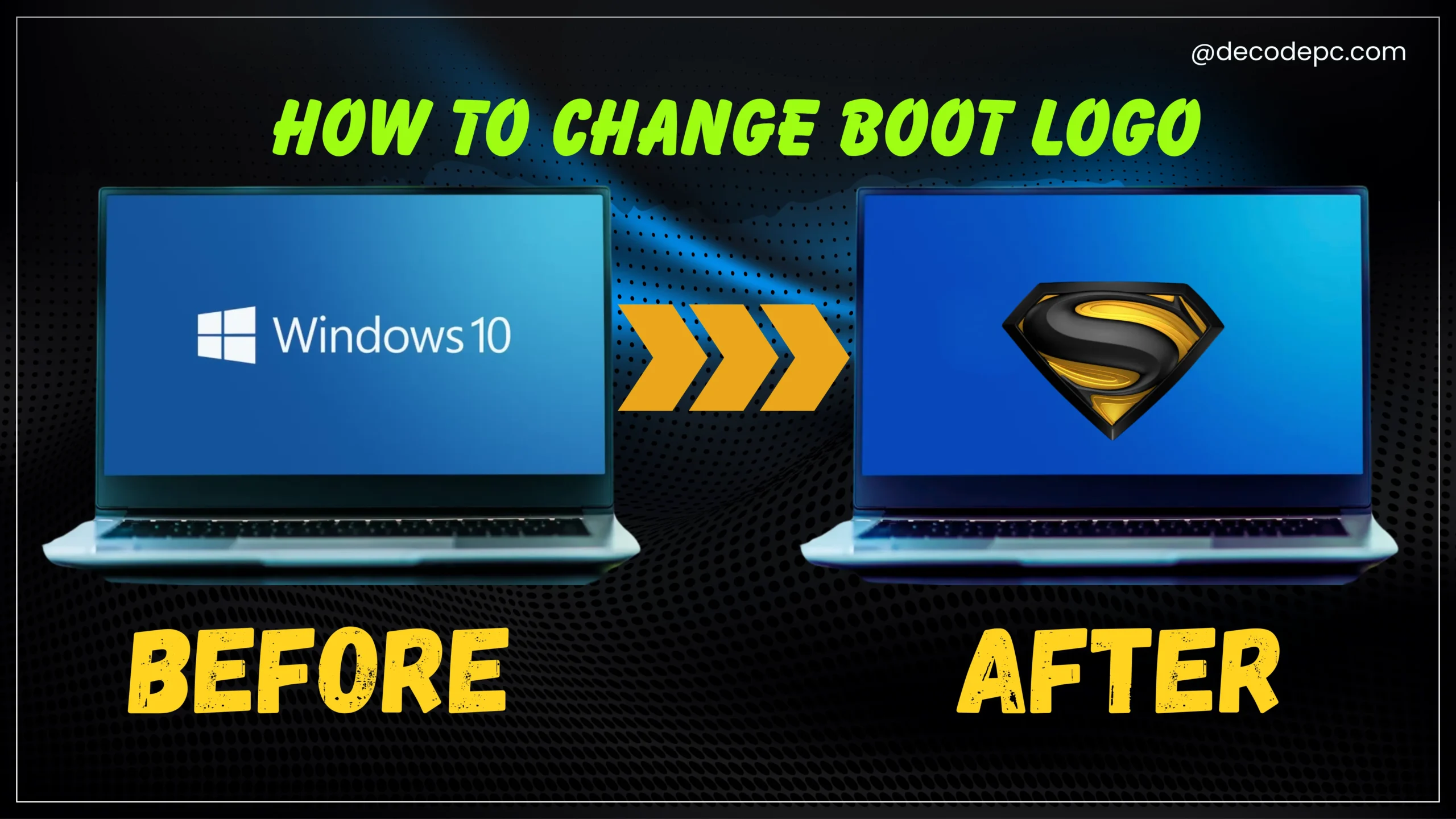
Personalizing your Windows experience doesn’t stop at themes and wallpapers – changing your Windows boot logo creates a unique startup experience that reflects your style or corporate branding. Whether you’re managing enterprise systems or simply want to add a personal touch to your computer, learning how to change the boot logo opens up exciting customization possibilities. This detailed guide covers everything from understanding boot graphics to safely implementing your custom Windows boot logo using proven methods like HackBGRT.
Your Windows boot logo serves as the visual signature during system startup, displayed before the operating system fully loads. This graphic element is stored within the Boot Graphics Resource Table (BGRT), a component of your computer’s UEFI firmware that handles boot-time graphics. The BGRT supports logos in specific formats – either 24-bit bitmaps with pixel format 0xRRGGBB or 32-bit bitmaps with format 0xrrRRGGBB.
For most users, the boot logo appears as either the Windows flag or the manufacturer’s branding (Dell, HP, Lenovo). OEMs utilize this system to display company logos during startup, creating brand recognition from the moment users power on their devices. The logo works alongside Windows’ characteristic spinning dots animation, creating a cohesive startup experience.
Why Change the Boot Logo in Windows 10?
Customizing your Windows boot logo offers several practical and aesthetic benefits. For IT administrators managing multiple workstations, a custom boot logo helps identify specific machines or departments instantly during startup. This visual distinction proves invaluable in enterprise environments where hundreds of similar devices require quick identification.
Corporate branding represents another compelling reason to modify boot logos. Companies can reinforce their brand identity by displaying custom logos during employee computer startups, creating a professional, unified workplace experience. Tech enthusiasts appreciate boot logo customization as part of comprehensive system personalization, making their computers truly unique.
Personal users often change boot logos to showcase favorite brands, artwork, or personal designs. This customization transforms the mundane startup process into something distinctive and engaging.
Safety and Backup Precautions Before Changing Boot Logo
Why it's Important to Back Up System Files
Boot logo modification involves altering critical system components that Windows relies on during startup, making comprehensive backups absolutely essential. Modifying boot-related files carries inherent risks that could potentially render your system unbootable if something goes wrong during the process. Professional IT administrators emphasize having multiple backup strategies before making any system-level changes.
System backups serve as your safety net, allowing complete restoration to a previous working state if complications arise. Without proper backups, a failed boot logo modification could result in lengthy repair processes or even require complete system reinstallation. The Boot Graphics Resource Table modification affects firmware-level components, making backup precautions even more critical.
How to Create a System Restore Point
Creating a system restore point provides excellent protection before attempting to change your Windows boot logo. Start by typing “Create a restore point” in the Windows search bar and selecting “Open”. In the System Properties dialog, click “Create” and provide a descriptive name like “Before Boot Logo Modification”.
The system creates a snapshot of your current configuration, including critical system files and registry settings. This process typically takes several minutes and provides a reliable rollback option if the boot logo modification fails. Always verify successful restore point creation before proceeding with any system modifications.
For enhanced protection, consider creating multiple restore points at different stages of the modification process. This approach allows granular recovery options if issues arise during specific steps.
Risks Involved in Modifying the Boot Logo
Changing your Windows boot logo involves several potential risks that users must understand before proceeding. The primary risk is system boot failure, which can occur if the modification process gets interrupted or incompatible files are used. Additionally, some modification methods require disabling Secure Boot, temporarily reducing your system’s security protection.
Other significant risks include potential warranty voidance, especially when using third-party tools or modifying UEFI firmware. System updates might reverse custom boot logo changes or cause compatibility issues. Microsoft doesn’t officially support these modifications, so users proceed entirely at their own risk.
Hardware-specific risks vary by manufacturer. Some systems may have locked UEFI implementations that resist modification attempts, while others might experience display issues with improperly formatted boot images.
Compatibility and System Requirements
Which Windows Versions Support Boot Logo Customization?
Boot logo customization primarily works on modern Windows systems utilizing UEFI firmware, including Windows 10 and Windows 11. Tools like HackBGRT specifically target these operating systems, offering reliable boot logo modification capabilities. Older systems running legacy BIOS have limited or no support for modern boot logo customization methods.
Windows 8 and later versions generally support UEFI boot modes, making them compatible with most boot logo modification techniques. To verify your system’s compatibility, press Windows + R, type “msinfo32” and check the BIOS Mode field. Systems showing “UEFI” support boot logo customization, while “Legacy” systems may require different approaches or might not support custom boot logos at all.
Certain OEM systems from manufacturers like Dell, HP, and Lenovo provide built-in BIOS options for logo customization, expanding compatibility beyond third-party tools. These manufacturer-specific solutions often work regardless of Windows version, provided the hardware supports the feature.
Differences Between BIOS and UEFI Systems Regarding Boot Logos
UEFI and BIOS systems handle boot logos fundamentally differently, significantly affecting customization options and methods. UEFI systems store boot logo information in the Boot Graphics Resource Table (BGRT), which tools like HackBGRT can safely modify. UEFI supports larger image files, better graphics capabilities, and more flexible boot logo management compared to legacy BIOS.
Legacy BIOS systems present significant limitations for boot logo customization. Operating in 16-bit mode with restricted memory space (1MB), BIOS constrains the size and complexity of custom boot logos. BIOS systems typically require firmware-level modifications to change boot logos, which proves much more complex and risky than UEFI-based methods.
UEFI systems offer numerous advantages for boot logo customization, including faster boot times, support for larger partition sizes, and enhanced security features. The graphical interface of UEFI also simplifies navigation and setting modification compared to keyboard-only BIOS navigation. Most systems manufactured after 2012 use UEFI firmware, making boot logo customization more accessible and safer.
The fundamental storage difference between these systems explains their varying customization capabilities. UEFI stores initialization data in .efi files on the hard drive, while BIOS stores information on firmware chips. This storage difference makes UEFI systems more flexible and easier to modify without risking permanent hardware damage.
How to Change the Windows Boot Logo (Safe Methods)
Changing the Windows boot logo is possible—but do it carefully. Back up important files, keep your BitLocker recovery key ready, and read all steps before you start. If your PC uses UEFI (most modern systems), HackBGRT is usually the best route. OEM tools work on some brands, third-party apps are hit-or-miss, and you can also do an advanced manual setup. Finally, polish your lock/sign-in screens for a consistent look.
1. Using HackBGRT (Recommended for UEFI Systems)
Steps to Use HackBGRT:
Check prerequisites: UEFI firmware; temporarily disable Secure Boot in BIOS/UEFI. Have your BitLocker recovery key handy.
Download HackBGRT from the official source and extract it.
Run setup.exe as Administrator. The tool mounts the EFI partition.
Prepare your image: 24-bit BMP, ~300–500 px, under 1 MB (often named splash.bmp).
Install & reboot to test. Try re-enabling Secure Boot; if it blocks, leave it off (know the trade-off).
Restore if needed using HackBGRT’s uninstall/restore option.
Pros:
Reliable on UEFI systems
Doesn’t flash BIOS; easy to revert
Widely used, simple once set up
Cons:
Often needs Secure Boot off
BitLocker may ask for recovery once
Requires BMP with correct specs
2. OEM-Specific Firmware Tools
Steps to Use OME Tools:
Check your brand’s support/enterprise tools for “custom logo” or BIOS branding.
Follow image rules (often exact-size BMP).
Flash/import via the official utility or BIOS option.
Reboot and verify at power-on.
Pros:
Secure Boot stays on
True firmware logo (shows earliest)
Official, update-friendly
Cons:
Not offered on many consumer models
Strict image requirements
Wrong flashing can be risky
3. Third-Party Boot Customization Apps
Steps to Third Party Apps:
Pick a well-reviewed, recently updated app.
Create a restore point/backup.
Follow the app flow to select image and apply.
Reboot to test.
Pros:
Simple UI
Quick to try
Cons:
Inconsistent on modern UEFI + Secure Boot
Some tools are outdated/bloated
Can be messy to undo
4. Manual Modification of BGRT
Steps to BGRT:
Mount the EFI System Partition (ESP).
Add a custom UEFI loader (or rEFInd/GRUB) that can draw a BMP.
Place your image and configure chainloading to Windows Boot Manager.
Set your loader first in boot order.
Test keep a recovery USB ready.
Pros:
Full control, very flexible
Can be reused across installs
Cons:
Complex and risky
Secure Boot conflicts unless binaries are signed
Sparse documentation
5. Using Group Policy Editor for Lock and Sign-in Screens (Partial Customization)
Steps to Edit Group Policy:
Press Win + R, type gpedit.msc (Pro/Enterprise).
Go to Computer Configuration → Administrative Templates → Control Panel → Personalization.
Enable “Force a specific default lock screen image.”
Point to a high-res JPG/PNG.
Sign out to see it
Pros:
Safe and supported
Secure Boot unaffected
Professional, consistent visuals
Cons:
Doesn’t change the actual boot logo
Not available on Home edition without workarounds
Summary of Methods
Best for most: HackBGRT (UEFI) with BMP image, Secure Boot off, BitLocker key ready.
Most official (if supported): OEM firmware tools—true BIOS logo, Secure Boot stays on.
Easy but unreliable: Third-party apps—only if actively maintained.
Power user: Manual UEFI loader—maximum control, maximum risk.
Polish only: Group Policy—lock/sign-in screens for a cohesive look.
Conclusion
Customizing your Windows boot logo is an excellent way to make your PC stand out, whether for personal flair or corporate branding. From the user-friendly HackBGRT tool to OEM firmware options, third-party apps, manual BGRT edits, and Group Policy customizations, you have multiple paths to change Windows boot logo and achieve a unique startup experience. Always begin by backing up your system, verify compatibility, and follow each method’s specific steps to avoid pitfalls. With the right precautions and tool selection—especially leveraging HackBGRT for UEFI systems—you can safely transform how your computer greets you every time it powers on. Start experimenting today and redefine your boot sequence with a custom touch!


![Why Is My Laptop So Slow? 15 Proven Reasons & How to Make It Faster Instantly [2026 Guide]](https://decodepc.com/wp-content/uploads/2026/08/laptop_slow_neon_thumbnail.webp)


Leave a Reply