Why Is My Laptop So Slow? 15 Proven Reasons & How to Make It Faster Instantly [2026 Guide]
Rakesh Yadav
Is your laptop taking too long to start, opening applications slowly, or freezing while you work? A slow laptop is one of the most common computer problems, but you don’t always need to replace your device to fix it.
A laptop can become slow because of low RAM, a nearly full storage drive, too many startup applications, overheating, an old HDD, outdated software, or unnecessary background processes.
In this guide, we’ll explain the most common reasons behind a slow laptop and the practical steps you can take to make it faster.
Why Is My Laptop So Slow?
There isn’t always one single reason. Your laptop’s performance depends on its processor, RAM, storage, operating system, temperature, and the applications running on it.
Here are 15 common reasons your laptop may be running slowly.
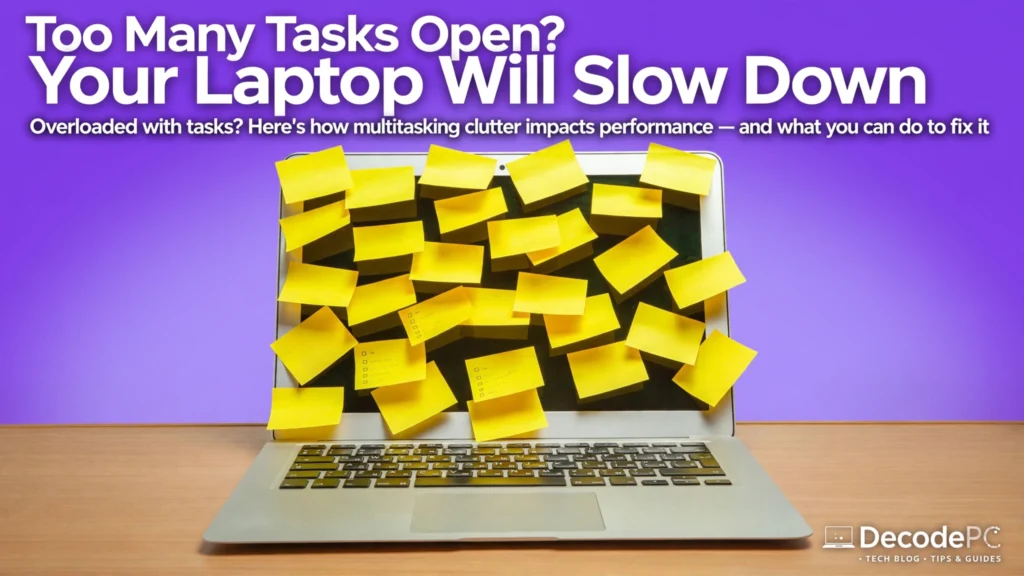
1.Too Many Programs Are Running
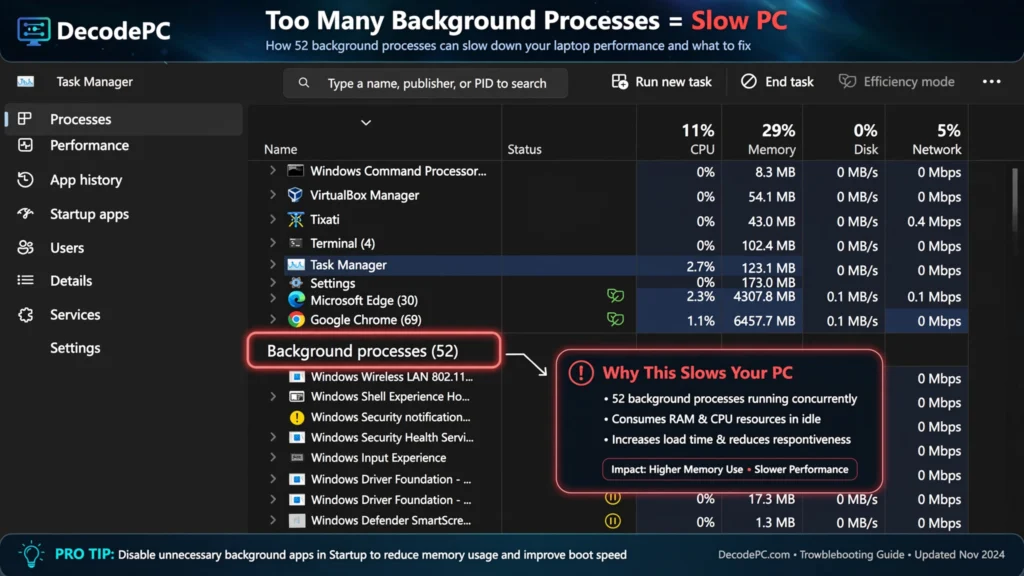
Running many applications at the same time uses CPU and RAM. This can make your laptop slow, especially if it has limited memory.
What to do:
Press Ctrl + Shift + Esc to open Task Manager. Check the CPU, Memory, and Disk columns and close applications you don’t currently need.
2. Too Many Startup Apps
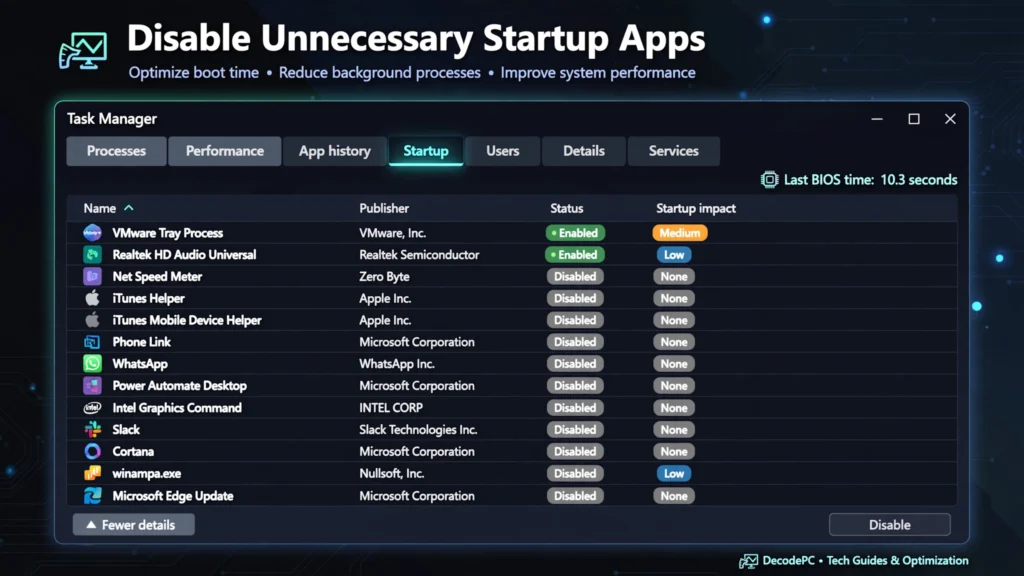
Some applications automatically launch when you turn on your laptop. The more programs that start with Windows, the longer your laptop may take to become ready.
How to fix it:
Open Task Manager.
Select Startup apps.
Check which applications have a high startup impact.
Disable unnecessary programs.
Don’t disable Windows system components unless you’re sure what they do.
3. Your Laptop Has Low RAM
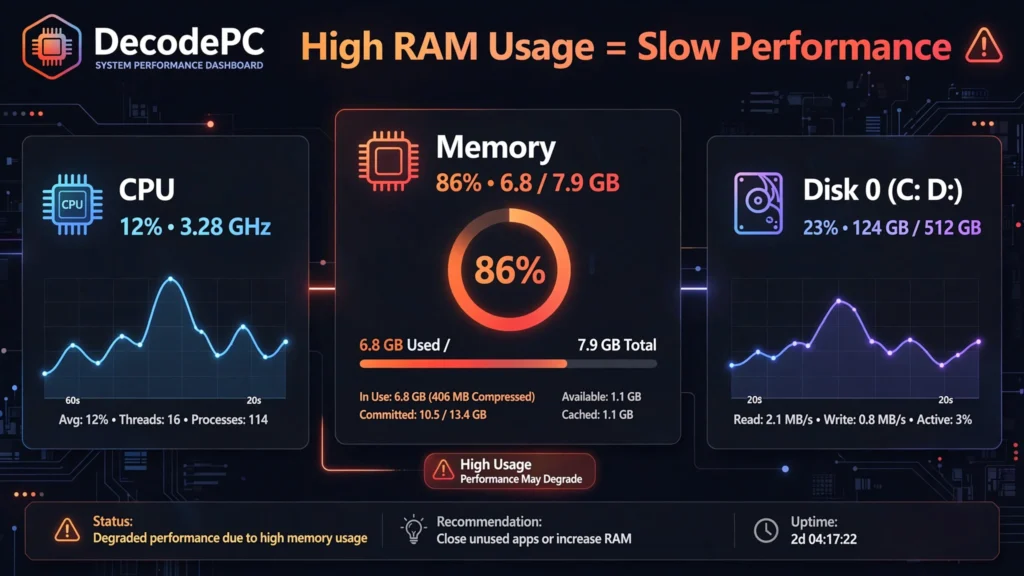
RAM affects how many applications and browser tabs your laptop can comfortably handle at once.
If your laptop has 4GB RAM, modern multitasking may feel slow. 8GB is more suitable for basic everyday use, while 16GB can provide more comfortable multitasking for many users.
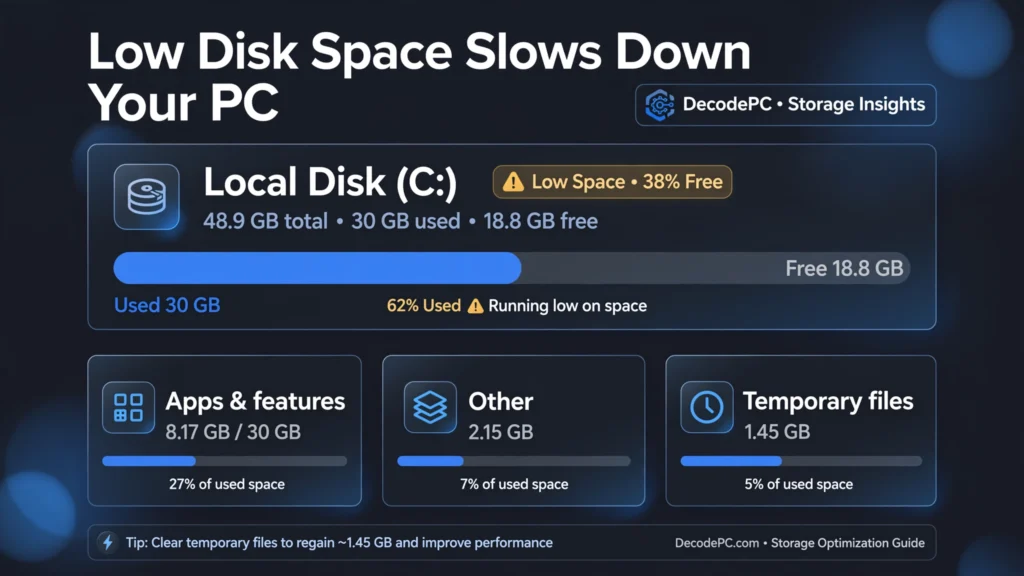
4. Your Storage Drive Is Almost Full
A nearly full system drive can cause storage-management and performance problems.
Try this:
Go to:
Settings → System → Storage
Check what is consuming your storage and remove unnecessary files.
5. You're Using an Old HDD
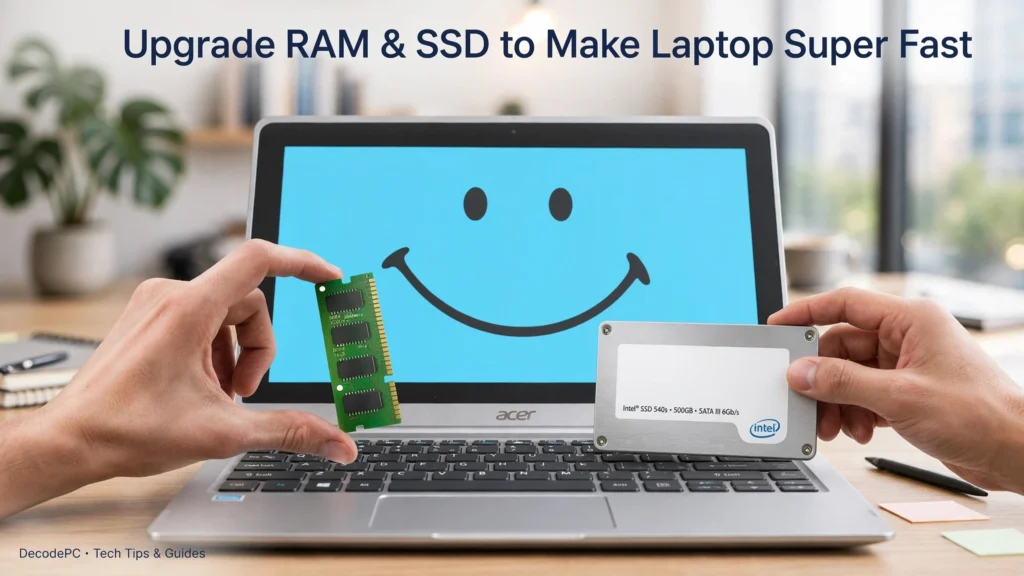
If your laptop still uses a traditional HDD, upgrading to an SSD can make a major difference in everyday responsiveness.
An SSD can improve:
Windows startup time
Application loading
File access
Overall system responsiveness
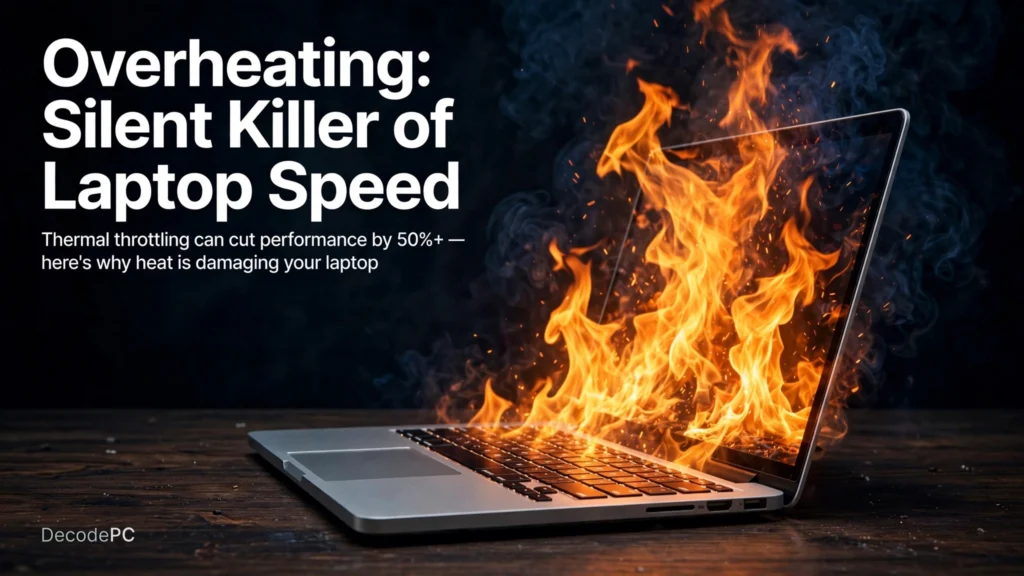
6. Your Laptop Is Overheating
When a laptop gets too hot, the processor can reduce its performance to control temperature. This is commonly known as thermal throttling.
Possible causes include:
Dust blocking air vents
Poor airflow
Heavy applications
A faulty cooling fan
Using the laptop on a soft surface
Keep the vents unobstructed and use the laptop on a hard, flat surface.
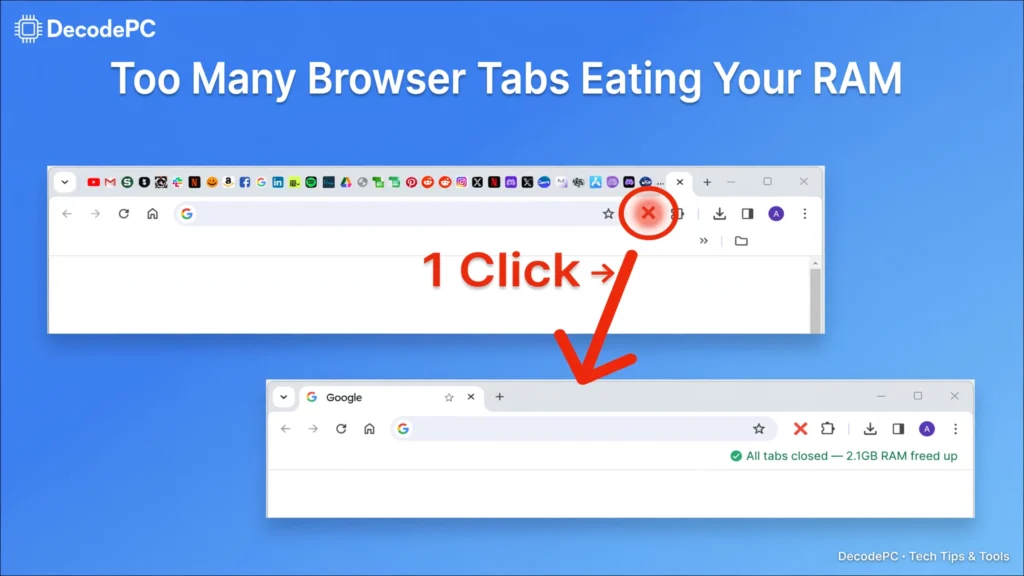
7. Too Many Browser Tabs Are Open
Web browsers can consume a lot of RAM, particularly when you have dozens of tabs open.
Solution: Close tabs you don’t need and remove unnecessary browser extensions.
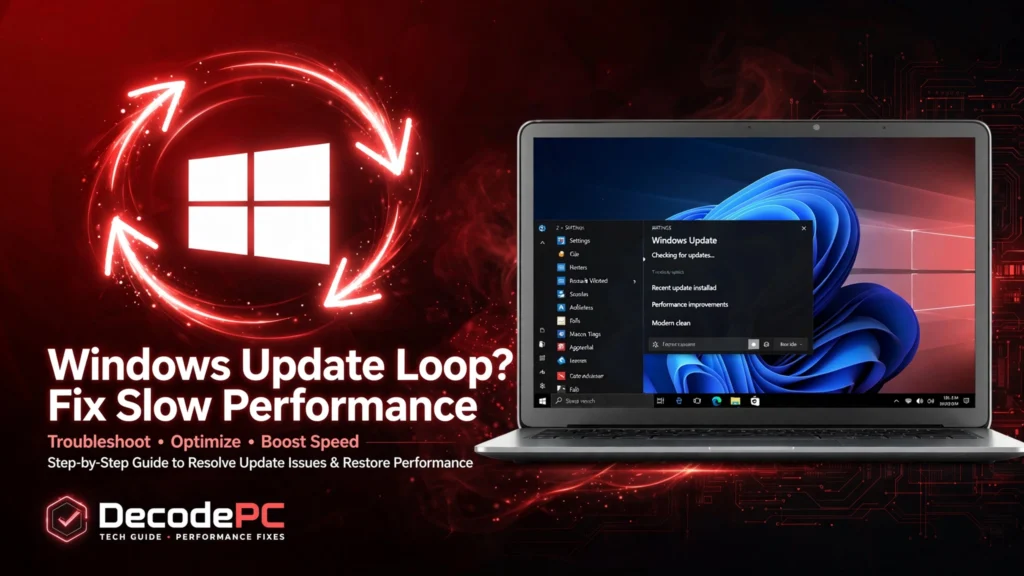
8. Windows or Drivers Need Updating
Outdated Windows components or drivers can sometimes cause compatibility and performance issues.
Check:
Settings → Windows Update
For hardware drivers, use the support website provided by your laptop manufacturer.
9. Unnecessary Software Is Installed
Applications you no longer use can occupy storage and sometimes run background processes.
Go to:
Settings → Apps → Installed apps
Review the list and uninstall software you don’t need.
10. Malware or Unwanted Software
Malware can consume system resources and affect your laptop’s performance.
Run a scan using Windows Security. Avoid downloading unknown “PC booster” or “speed-up” applications, as some can create more problems than they solve.
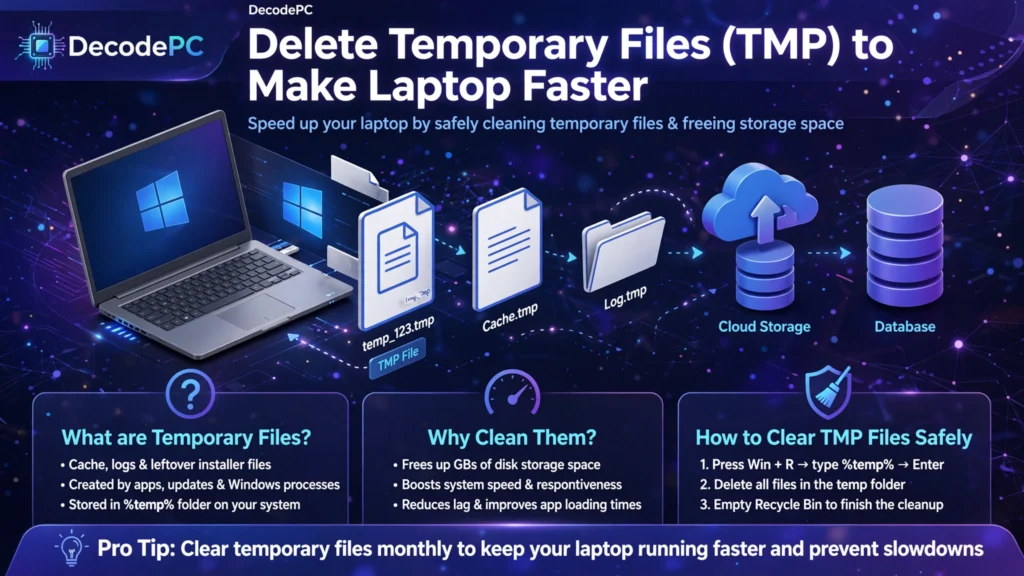
11. Temporary Files Are Taking Up Space
Windows and applications create temporary files during normal operation.
You can review temporary files through:
Settings → System → Storage → Temporary files
Only remove files you understand and no longer need.
12. Your Laptop Is Running an Older Version of Windows
Older software may not always provide the best compatibility or performance with newer applications.
Keep your supported Windows installation updated and make sure your hardware meets the requirements of the version you’re using.
13. Your Browser Has Too Many Extensions
Browser extensions can use memory and processing resources.
Open your browser’s extensions page and remove extensions that you don’t recognize or no longer use.
14. Your Laptop Hardware Is Too Old
Sometimes the problem isn’t software. Older processors, limited RAM, or aging storage can become a bottleneck as applications become more demanding.
Before buying a new laptop, check whether your current device supports:
RAM upgrade
SSD upgrade
Battery replacement
A relatively inexpensive upgrade may extend the useful life of your laptop.
15. Your Storage Drive May Be Failing
A failing HDD or SSD can cause serious performance issues.
Warning signs may include:
Very slow file access
Frequent freezing
Unexpected crashes
Missing or corrupted files
Unusual HDD noises
Important: If you suspect your drive is failing, back up your important data immediately.
How to Make Your Laptop Faster
If your laptop is running slowly, try these steps in order:
Quick Fixes
1. Restart your laptop
A restart clears temporary processes and can resolve minor performance issues.
2. Close unnecessary applications
Check Task Manager and stop programs you aren’t using.
3. Disable unnecessary startup apps
This can improve Windows startup time.
4. Free up storage
Remove unnecessary temporary files and unused applications.
5. Reduce browser tabs and extensions
This can free up RAM.
6. Check for malware
Run a Windows Security scan.
7. Update Windows
Install available updates from Windows Update.
8. Keep your laptop cool
Don’t block the cooling vents.
9. Upgrade from HDD to SSD
This can provide a significant improvement on older laptops.
10. Upgrade RAM if supported
More RAM can help with multitasking when your current memory is insufficient.
How to Find What Is Making Your Laptop Slow
Windows Task Manager can help you identify which programs or system resources may be causing your laptop to slow down.
To open Task Manager, press Ctrl + Shift + Esc.
Check These 5 Things:
CPU
Shows which programs are using the most processor power.
Memory (RAM)
Shows how much of your RAM is currently being used.
Disk
Shows how heavily your storage drive is being accessed.
Network
Shows which applications are using your internet connection.
Startup Apps
Shows which programs automatically launch when Windows starts.
💡 Quick Tip
If CPU, Memory, or Disk usage stays around 90–100%, check Task Manager to see which application is consuming the most resources. This can help you identify the possible reason behind your laptop’s slow performance. When Should You Upgrade Your Laptop?
When Should You Upgrade Your Laptop?
Consider an upgrade if:
Your laptop has very little RAM.
It still uses an HDD.
Storage is constantly full.
The laptop is several years old.
Basic applications are consistently slow even after troubleshooting.
If your laptop supports it, SSDand RAM upgrades are often worth checking before replacing the entire device.
Frequently Asked Questions
Why is my laptop suddenly so slow?
A sudden slowdown can be caused by a background application, Windows update, malware, overheating, low storage, or a storage-drive problem.
Does deleting files make a laptop faster?
Freeing storage can help when your drive is nearly full, but simply deleting a few files won’t necessarily make a laptop faster if the real problem is RAM, CPU usage, overheating, or an aging HDD.
Does more RAM make a laptop faster?
More RAM can improve performance when your laptop doesn’t have enough memory for the applications you’re running. It won’t necessarily make every laptop faster.
Does an SSD make a laptop faster?
Yes. Replacing an HDD with an SSD can significantly improve boot times, application loading, and general responsiveness.
How can I make my laptop faster without buying anything?
Start by disabling unnecessary startup apps, removing unused software, freeing storage, reducing background processes, checking for malware, keeping Windows updated, and managing browser tabs and extensions.
A slow laptop doesn’t automatically mean it’s time to buy a new one. Start by identifying the actual bottleneck—RAM, storage, CPU usage, startup applications, overheating, or software problems.
For older laptops, moving from an HDD to an SSD and adding more RAM when supported can provide a much more noticeable improvement than simply installing “PC booster” software.
Before upgrading or replacing your laptop, diagnose the problem first. You may be able to restore much of its performance with a few simple changes.